A digital planner is a PDF file that you open in a note-taking app and write on with a stylus. You download the file, import it into an app such as Goodnotes or Notability, and it behaves like a paper planner with one addition: the tabs and buttons on each page are links that jump to other pages. The steps below cover the import, the links, stickers, extra pages and backup. Where button names are given, they come from the apps' own help centers as of fall 2026.
What a Digital Planner Is
Understanding what is in the file prevents most of the confusion people have in the first hour.
A digital planner is an ordinary PDF that can run to several hundred pages. The designer has drawn tabs down the side or across the top (months, weeks, sections) and attached a link to each one. Tapping a tab moves you to that page, so you never have to scroll through the whole document.
It is not an app. It does not send reminders or know what today's date is. Anything you add is handwriting, typed text or images placed on top of the pages. Planners come dated, with a specific year's calendar filled in, or undated, where you write the dates yourself and can start at any time.
What You Need
- A tablet. The current version of Goodnotes needs iPadOS 18.7 or later, so check Settings > General > About on an older iPad. Goodnotes also runs on Android, Windows and the web.
- A stylus. An Apple Pencil makes handwriting comfortable, but each Pencil model works only with certain iPads, so match the two before buying. Without a stylus you can still type into text boxes.
- A note-taking app that keeps PDF links working. Goodnotes and Notability are the best known. Both import PDFs.
Check the free tier before you count on it. Goodnotes Free allows up to 3 notebooks and import files of up to 5 MB, and it watermarks exports. A long planner can be bigger than 5 MB, so look at the file size first. Plans change, so read the current App Store listing before deciding.
These three planners from our collection are built for this kind of app.
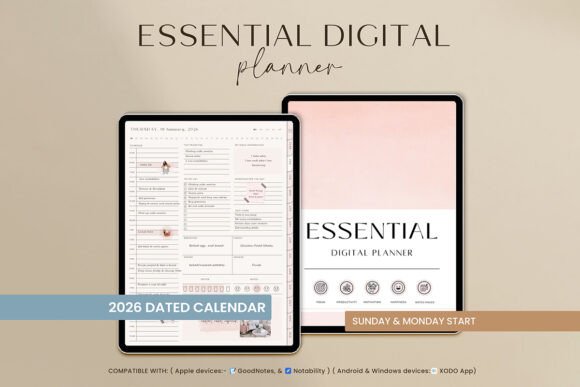
Essential Digital Planner, Goodnotes
See the listing ↗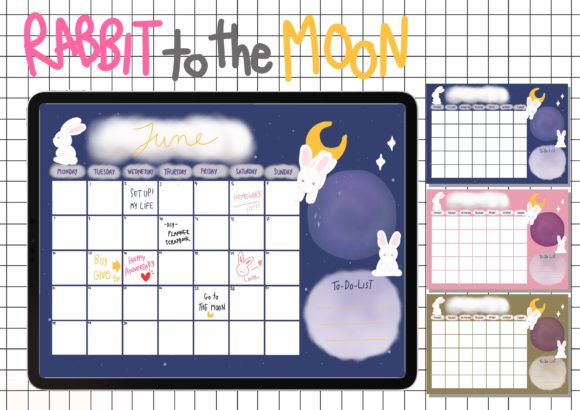
Digital Planner Goodnotes Template
See the listing ↗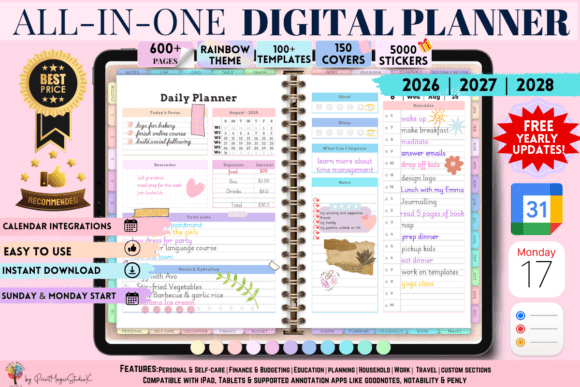
All-in-One Digital Planner
See the listing ↗From the collection GoodNotes & Digital Planner. New Creative Fabrica members get 10 free downloads, and any of these can be one of them.
Import the Planner
- Download the file to the iPad. It will usually land in the Files app. Downloading directly on the iPad is simpler than moving the file over from a computer.
- Unzip it if needed. Planners often arrive as a ZIP archive containing the PDF and extras. Tap the ZIP file in the Files app and a folder containing the files is created.
- Bring the PDF into your app.
- Goodnotes, from inside the app: in the Documents tab of the library, tap + New, then Import, select the file and tap Open.
- Goodnotes, from Files: open the PDF, tap Share, choose Open in Goodnotes, pick New Document and a location, and confirm.
- Notability: press and hold + New in the library, select Import and choose Files.
- Check that it opened as a document in your library, and rename it to something you will recognize.
On an iPad you can also put the Files app and Goodnotes side by side in Split View, long-press the file and drag it across.
Keep the original download where it is. If you ever want a clean copy for a new term, you can import it again.
Tabs, Links and the Writing Mode
This is the part that trips up nearly everyone. With a pen tool active, a tap on a tab can be treated as a pen stroke, and you get a dot of ink instead of a page jump.
Goodnotes has two modes for this:
- Read Only Mode. Tap its icon in the navigation bar. The bar turns white and the writing toolbar disappears. Now a single tap on a tab opens the page, and nothing you touch leaves a mark.
- Edit Mode. Tap the icon again. The bar turns blue and the toolbar comes back. To follow a link without leaving this mode, touch and hold it and choose Open Link.
Use Read Only Mode to move around and Edit Mode to write. Other apps have their own version of the same switch, so look for a viewing or read-only toggle in the toolbar.
If no tab works in any mode, test the same PDF in another viewer. Goodnotes' own advice is that a link opens only if the imported PDF contains a working one; if it fails everywhere, the file may have been flattened along the way. Import the original download again.
Writing, Typing and Zooming
Write as you would on paper. A few habits make it more pleasant:
- Zoom in to write in small boxes, then zoom out to read. Handwriting looks neater when it was written large.
- Choose a thin pen for planner pages. Thick strokes fill small lines quickly.
- Search works on handwriting. Goodnotes indexes handwriting as well as typed text, so you can find "Lab report" later either way. Use the text tool where neatness matters.
- Use the lasso tool to move an entry to another day instead of erasing and rewriting it. Draw a loop around it, then drag it, or cut it and paste it on another page.
What to write is the same as in a paper planner: dates on the month pages, tasks on the weekly pages, priorities on the daily pages. Our guide on how to use a study planner goes through each view.
Adding Stickers
Digital stickers are small images with transparent backgrounds, usually PNG files. They also come as a "sticker book," which is a document full of stickers that you copy from.
There are three common ways to place one:
- From image files: in Goodnotes, select Images in the toolbar and pick a picture from Photos, or choose Insert from… to take one from your files. Then resize and position it.
- From a sticker book: open the book in your app, loop a sticker with the lasso tool, copy it, switch to your planner and paste.
- By drag and drop: with two apps side by side on the iPad screen, drag an image from Files or Photos straight onto the page.
Goodnotes can keep favorites at hand in its Elements tool. Select the sticker on the page, choose More (…) and Create Element, and put it in a collection. After that it sits under Elements > Stickers in the toolbar, ready to tap or drag onto any page. Notability keeps its own sticker packs, plus a My Stickers section for ones you make.
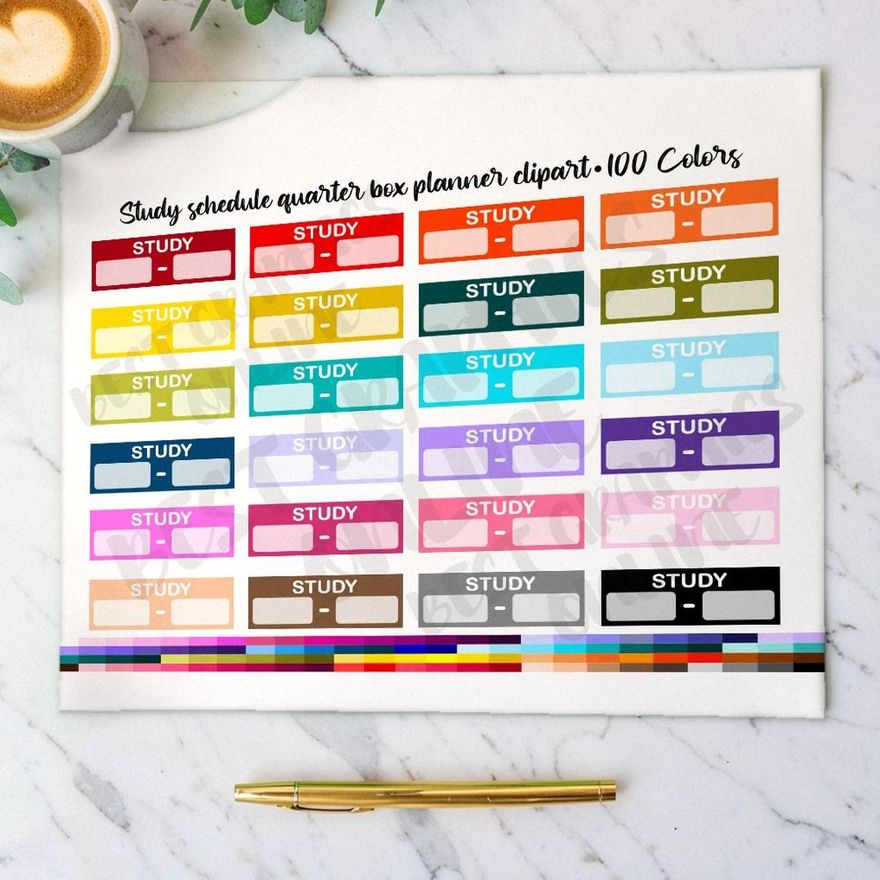
Functional stickers such as flags, checkboxes and subject labels are more useful for school than decorative ones. Go easy at first, because a page covered in images is slower to scan.
Duplicating and Adding Pages
Paper planners run out of space. Digital ones do not, which is one of the real advantages.
In Goodnotes the steps are:
- Open the sidebar and select Pages to see the thumbnails.
- Choose Select Pages, tap the page you want and tap Copy.
- Go to where the copy should sit, tap the Add Page icon and choose Before, After or Last Page.
- Tap Paste Page(s).
To reorder, touch and hold a thumbnail in the sidebar until it lifts, then drag it.
This is useful for:
- an extra daily page on a crowded day
- more notes pages behind a subject section
- a fresh copy of an undated weekly spread
One caution: tabs link to specific pages in the document. Delete a page that a tab points to and that tab has nowhere to go. In Goodnotes a deleted page goes to the Trash Bin first, so a mistake can be undone. Add freely; delete carefully.
Single-purpose templates can sit in the same app as separate documents alongside the main planner.
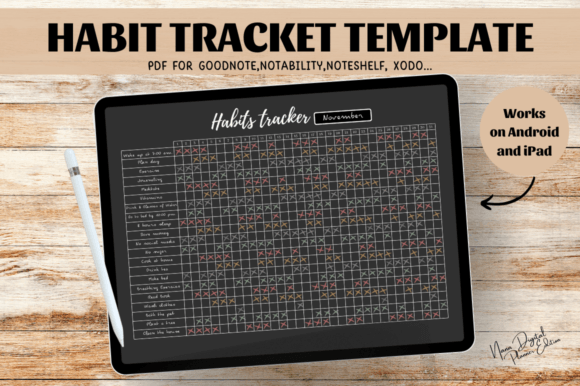
Digital Habit Tracker,Goodnotes Template
See the listing ↗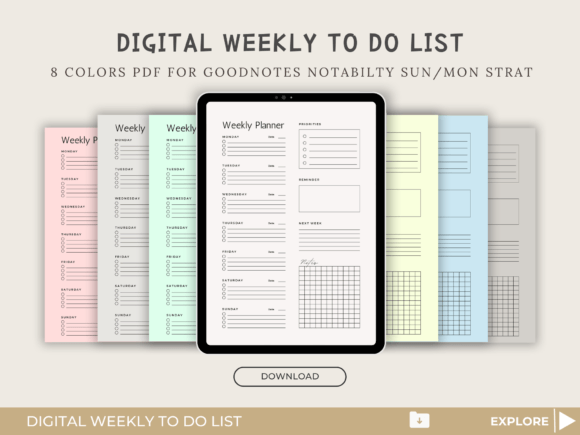
Digital Weekly to Do List Goodnotes
See the listing ↗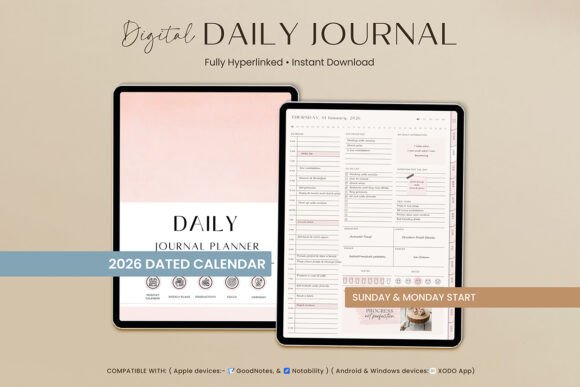
Goodnotes Daily Journal Digital Planner
See the listing ↗From the collection GoodNotes & Digital Planner. New Creative Fabrica members get 10 free downloads, and any of these can be one of them.
Back Up Your Planner
A planner holds a term of deadlines. Losing it in week ten is worse than losing a paper one, because there is no chance of finding it under the bed.
Sync and backup are different things. Sync keeps every device identical, deletions included. A backup is a separate copy that stays put.
| Feature | What it does in Goodnotes | Where to turn it on |
|---|---|---|
| iCloud Sync | Keeps the same library on your iPhone, iPad and Mac | Goodnotes menu > Cloud & Backup > Cloud Sync |
| Auto Backup | Uploads copies one way to Google Drive, Dropbox, OneDrive or WebDAV; deleting a document in the app leaves the copy in place | Goodnotes menu > Cloud & Backup > Automatic Backup |
| Manual Backup | Saves the whole library as one .zip file | Goodnotes menu > Cloud & Backup > Manual Backup > Back Up Now |
On Apple devices Auto Backup runs in the background about every 12 hours by default, so the last few hours of work may not be in the cloud yet. Notability offers the same kind of one-way backup, to Box, Dropbox, Google Drive, OneDrive or WebDAV.
Before resetting a device, updating the operating system or moving to a new iPad, run a manual backup. That is Goodnotes' own advice.
A PDF export once a month gives you a copy that does not depend on the app. In Goodnotes, choose the Editable PDF format if you want the tabs to keep working: a Flattened export does not preserve the original links.
Accessories That Make Writing Easier
Beyond the tablet and the app, a few accessories change how handwriting feels on glass. Check each one against your exact iPad model before you order.
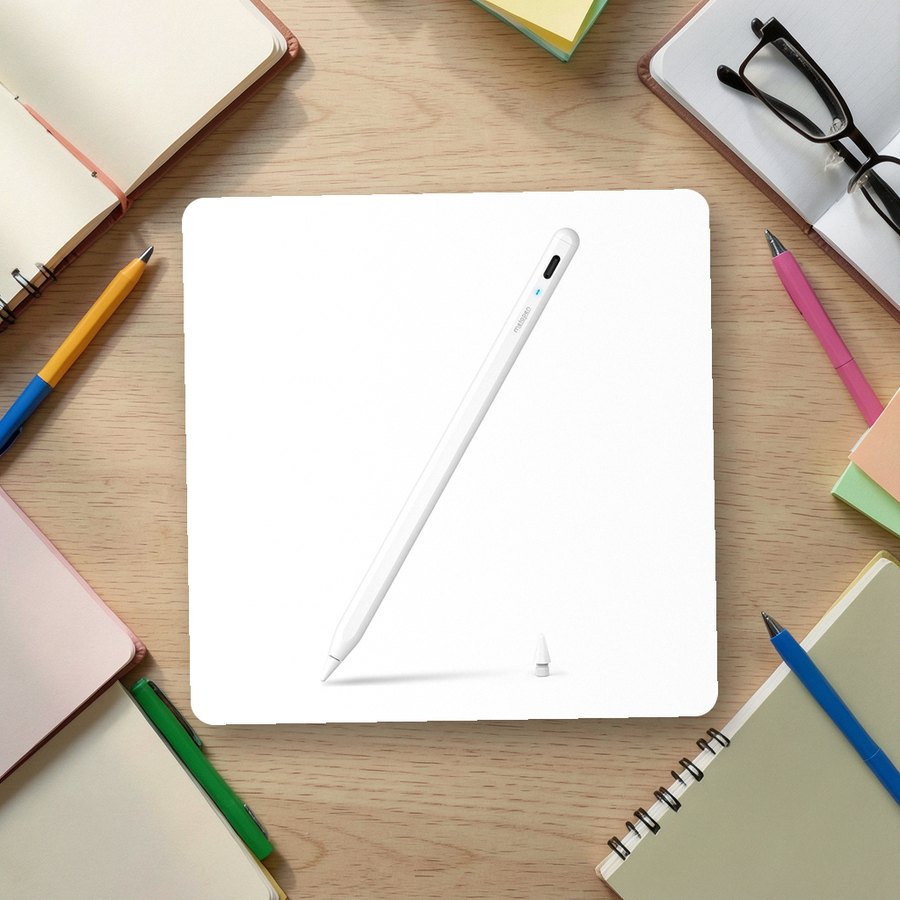 Stylus with palm rejection for iPadmetapenSee it on Amazon
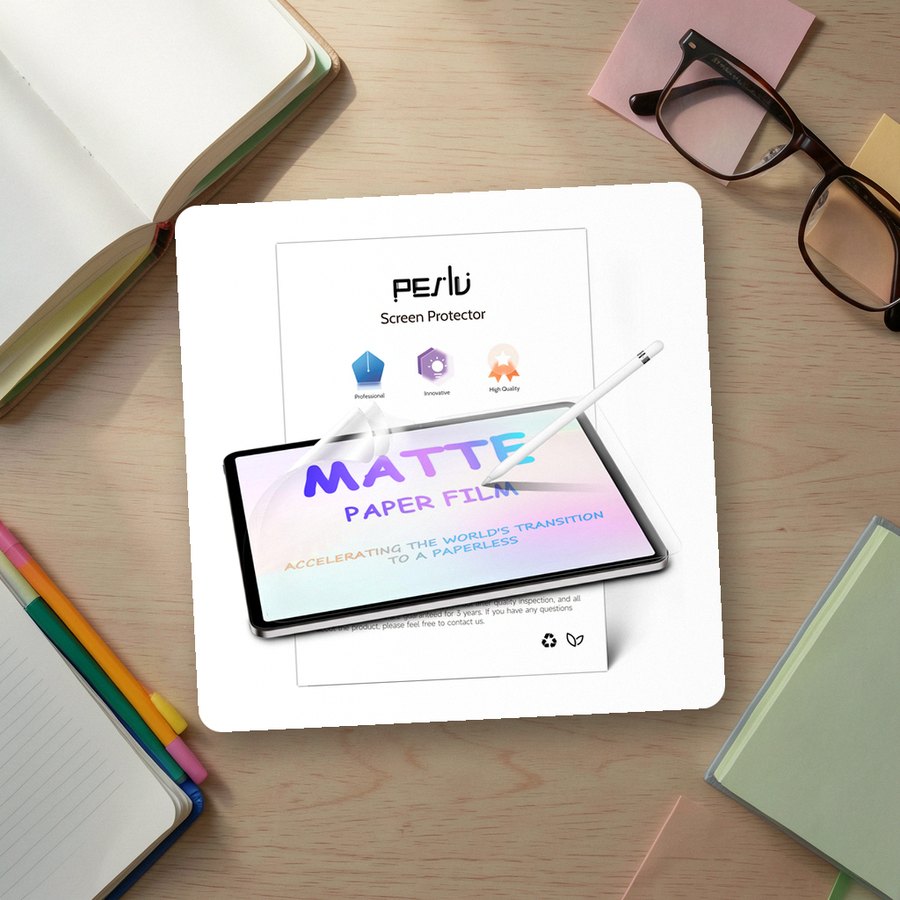 Paper-feel screen protector for iPadPeslvSee it on Amazon
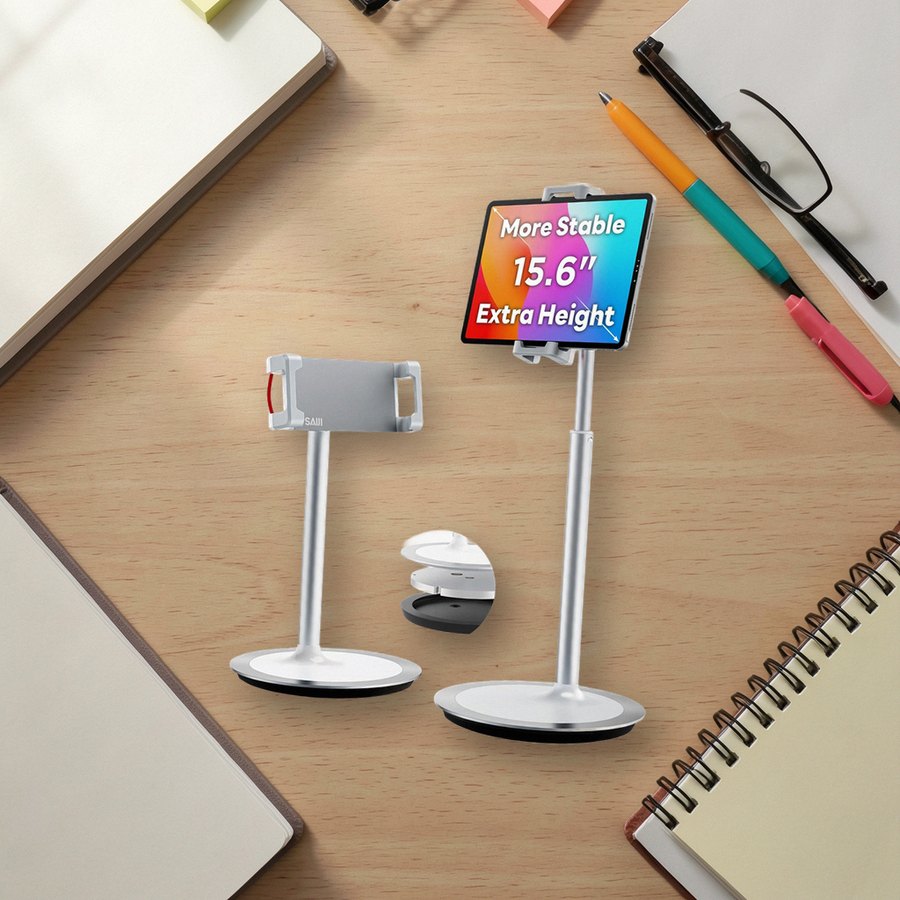 Height-adjustable desk stand for iPadSAIJISee it on Amazon
As an Amazon Associate we earn from qualifying purchases.
Set It Up This Week
Import the planner, switch to Read Only Mode and tap through every tab so you know where things are. Then enter this term's test and due dates on the month pages before decorating anything.
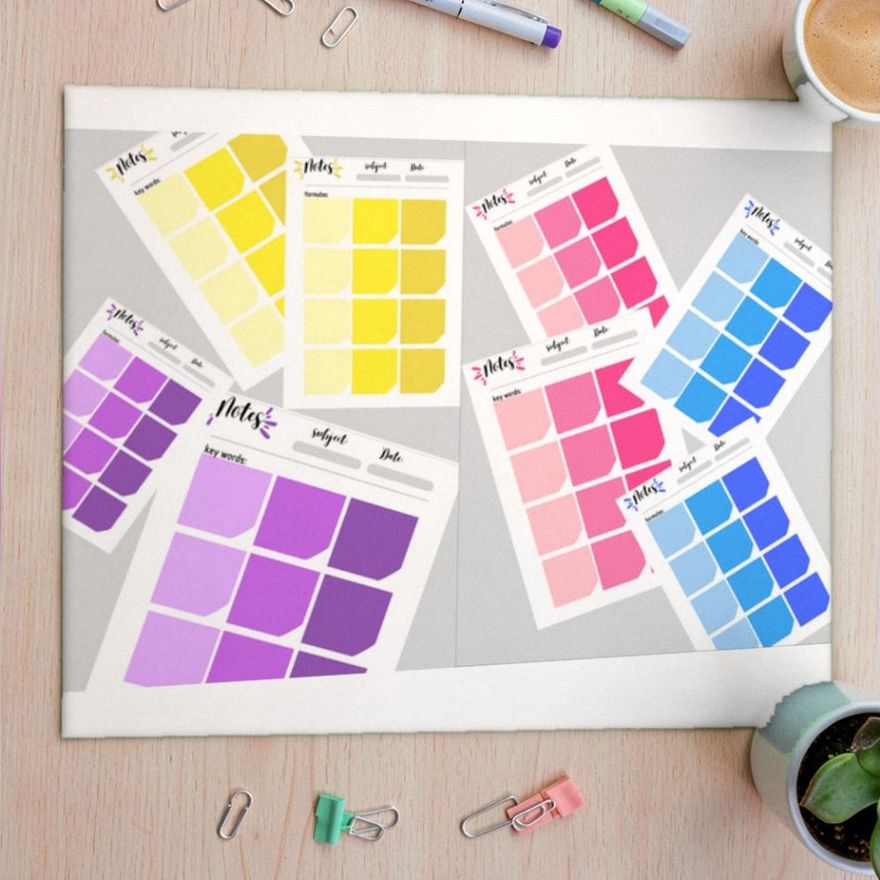
Printable note pages can be imported the same way and used for class notes; note-taking methods compared will help you choose a layout. If you would rather type than write, a database-style setup may suit you better, and Notion for students walks through one. To compare layouts first, browse the Goodnotes and digital planner collection. Creative Fabrica gives new members 10 free downloads, which is enough to try more than one layout before settling on a planner for the term.
Templates for This Topic
GoodNotes & Digital Planner14 hand-picked · open the collection → Student & School Planner15 hand-picked · open the collection →